Turn on the Add to calendar button
You turn on the Add to calendar button with the Enable calendar tick box. It takes the date, time and location from the same window, so check those first.
Switching the button on
- In your dashboard, click the menu (the three dots) next to the name of your invitation.
- Choose Change details.
- Check the Date, Time and Location.
- Tick Enable calendar and click Save settings.
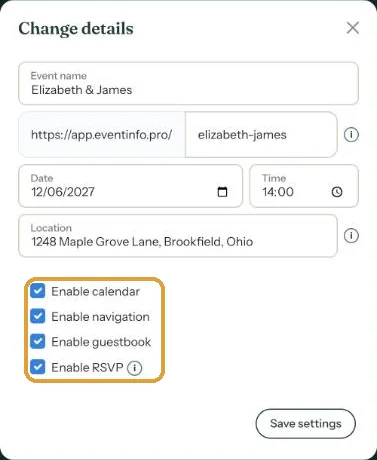
On a new invitation the button is already on. You can turn it off at any time, even after you’ve shared the link.
What your guests get in their calendar
- The Event name as the title. Pick something guests will recognise, such as “Elizabeth & James’s wedding”.
- The date and start time. The entry lasts one hour; guests can extend it themselves.
- The name and address of the venue.
- A link to your invitation in the notes.
For a funeral or birth announcement. If Include an invitation for a farewell (or for a baby shower) is switched off, the only date is the date of passing or the date of birth. That isn’t something to put in a calendar, so turn the Add to calendar button off.
Next step: How guests add the date to their calendar
Last updated: October 23, 2026