Entering the right address
Start typing in Location and click a suggestion from the list. That saves the name of the place together with the full address, so the Directions button points to the right spot.
How the Location field works
As you type, the field shows suggestions from Google Maps. Type “Kingsway Grand Hall” and pick the right one. The field then shows the name, while Eventinfo.pro stores the address in the background: 88 Kingsway, London WC2B 6EL. Guests see both under Directions and in their calendar.
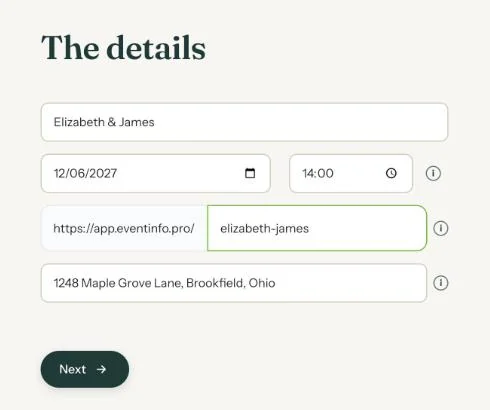
Typed but not picked
If you don’t click a suggestion, the address isn’t updated. On a new invitation there’s only your own text. If you later change the location in Change details without picking one, the old address stays. So always pick a suggestion again.
A place without a street number
For a beach, forest or park, choose the nearest point Google Maps knows, such as the car park or the entrance. Then describe the meeting point in the text of your invitation.
Next step: What guests see when they tap Directions
Last updated: October 23, 2026