Turn on the Directions button
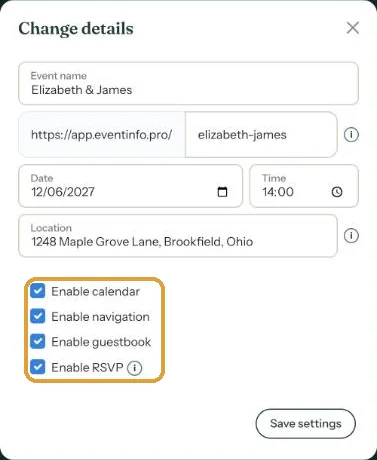
The Directions button takes guests to your venue in their own map app. You switch it on with the Enable navigation tick box.
Switching the button on
- In your dashboard, click the menu (three dots) next to your invitation and choose Change details.
- Type the name or address in Location and pick a suggestion from the list.
- Tick Enable navigation.
- Click Save settings.
A new location applies straight away. Anyone who uses the button afterwards gets the new address. The calendar entry guests create with Add to calendar uses this location too.
One address per invitation
The button works for one venue. If there’s a second place, say the ceremony at the town hall and the party elsewhere, put that address in your text as a link. Several venues on one day shows how.
No fixed venue? Without an address the button has nowhere to go. Switch it off, for example for an online meeting.
Next step: Entering the right address
Last updated: October 23, 2026