Adding colleagues
A colleague can use your account with their own email address and password. They can then see and manage every invitation in it, just as you can.
Adding a colleague
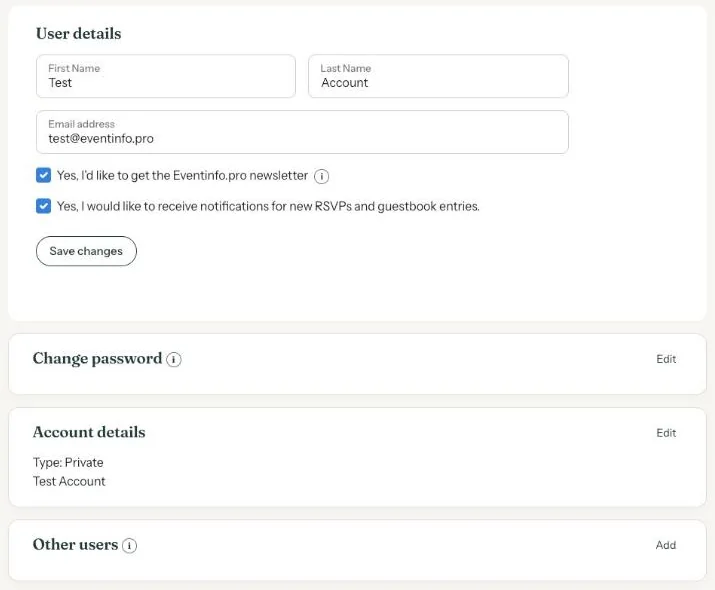
- In your dashboard, go to Account.
- Under Other users, click Add.
- In the New user window, fill in your colleague’s first name, last name and email address.
- Choose a password of at least 12 characters and click Add new user.
Hand over the password in person, or at least not in the same message as the email address. Your colleague can change it afterwards on their own Account page (Changing your account details and password).
Removing a colleague
Under Other users, click the cross in front of the name, then Confirm. That login stops working. The invitations stay in your account.
Only the account owner sees this section. Colleagues you add can’t add or remove other users themselves.
Would you rather have this arranged for a whole team, along with your own branding? That’s part of a business account (Requesting a business account).
Next step: Creating invitations for your clients
Last updated: October 23, 2026