Changing your account details and password
You change your name, email address and password on the Account page, which you’ll find in the dashboard navigation.
Name and email address
- Go to Account.
- Under User details, change your First Name, Last Name or Email address.
- Click Save changes.
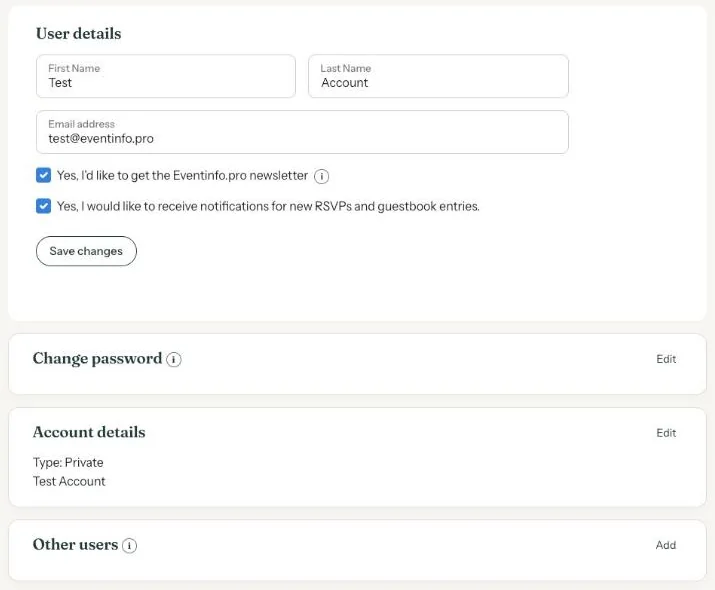
A new email address is also your new login. Notifications about new RSVPs and guestbook messages will go there from now on.
Changing your password
- Next to Change password, click Edit.
- Enter your Current password, then the New password (min. 12 characters).
- Click Save changes. If you see Incorrect password, the current password was wrong.
Can’t remember your current password? Log out and choose a new one on the login page; see Forgot your password or can't log in.
Did you create the account yourself? Then you’ll also see Account details, with the account name and, if you tick it, your company details with address and VAT number.
Next step: Newsletter and notifications
Last updated: October 23, 2026