Change the image
Swap the photo in seconds
Use the right image to set the tone and make guests click. Changing the photo is quick and safe, so you can test and refine. Keep the layout, update only the picture—you're in control.
Change the image on the web page and email
While editing the invite, you have two ways to open the image picker.
- Click the image icon in the editor toolbar.
- Or click the image itself on the canvas.
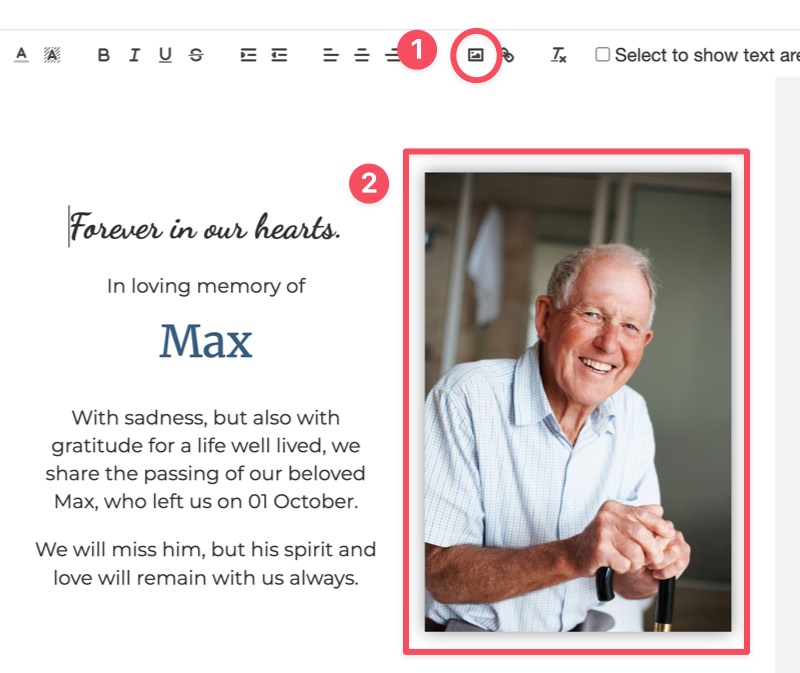
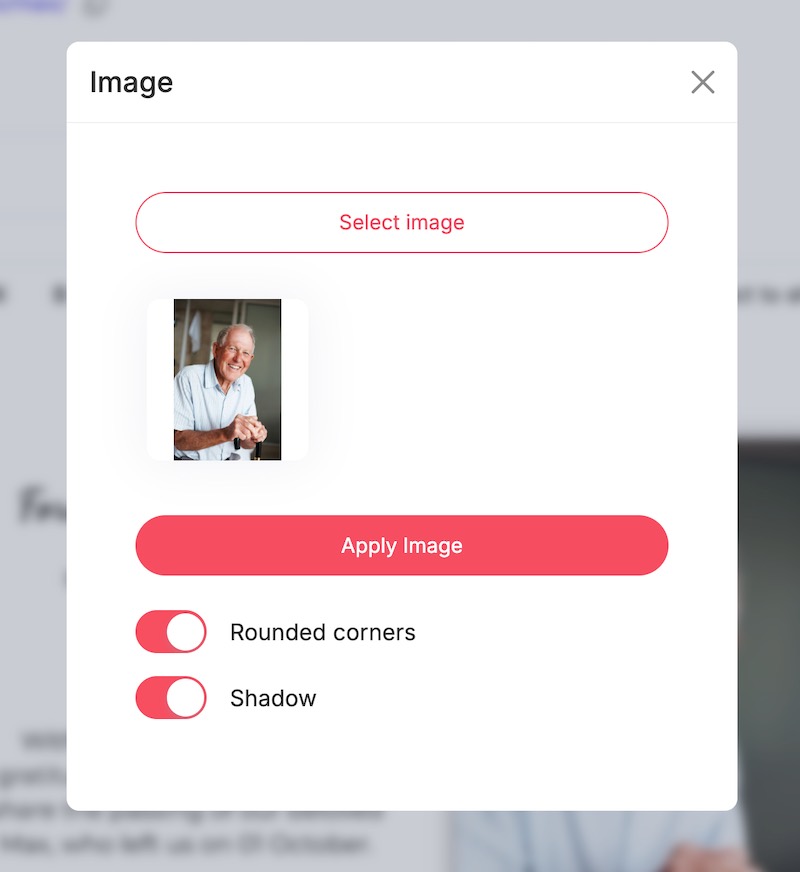
In the image window, do the following:
- Select Select image and choose a file from your device.
- Check the preview.
- Click Apply image to update your invite.
Change the image for social media images
In the next step, you create the three social media images. Here you can only open the image picker via the toolbar.
- Click the image icon in the toolbar.
- Choose your photo and Apply image.
⚠️
If you use a portrait, make sure you have permission to share it.
Image settings: rounded corners and shadow
Give the photo a softer look or more depth.
- Rounded corners — adds a gentle radius.
- Shadow — lifts the image from the background.
Toggle these options in the image window and preview before you apply.
Quick checks before you publish
- Faces centered and not cropped awkwardly.
- No logos or watermarks in the corner.
- Colors match your invite’s style.
Last Update: 13 October 2025