Use the color picker
Start with a photo
First add your photo to the invite. A matching color always looks best when it comes from your image.
- Open your design and add or replace the photo.
- Make sure the photo is visible on the canvas.
Open the color picker
- Go to the Background tab.
- Click the color dot to open the palette.
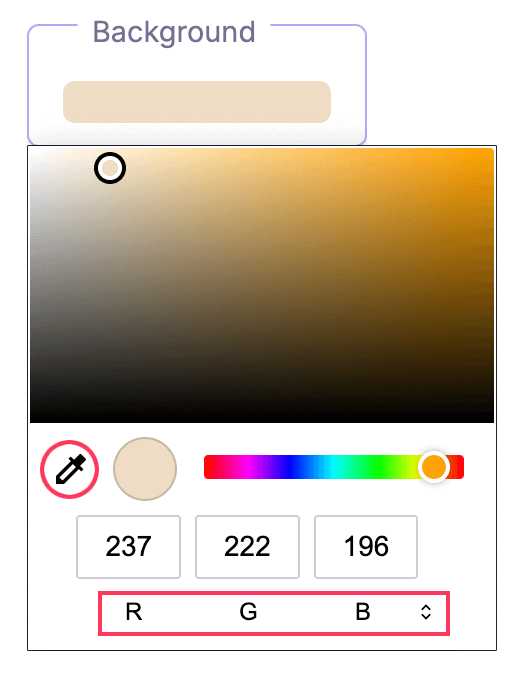
Pick from your photo with the eyedropper
Use the eyedropper to match the background to your photo in seconds.
- Click the eyedropper icon in the palette.
- Move the cursor over your photo. You will see a live preview.
- Click the spot you like. The preview circle shows the selected color.
- Repeat on other areas until it looks right.
💡
Pick a color from skin tones, key clothing, or a logo for a clean, consistent look.
Fine-tune inside the palette
- Drag inside the large square to adjust lightness and saturation.
- Use the rainbow bar to change the hue (red, blue, green, etc.).
- Check the round preview to confirm the final shade.
Enter exact values (RGB, HSL, hex)
Type values if you need a precise brand color or want to copy a code.
- Click the labels R G B to switch the input mode.
- Choose RGB, HSL, or hex.
- Enter your values (for example 255 0 0, or hsl(0 100% 50%), or #ff0000).
Save and reuse
Keep the hex code you chose. Reuse it for texts, buttons, or overlays to keep everything aligned.
Last Update: 10 October 2025