Does it work on phones, tablets and computers?
Yes. Guests open your invitation in their browser, on any device. You can also create and edit it on your phone.
What guests see on a phone
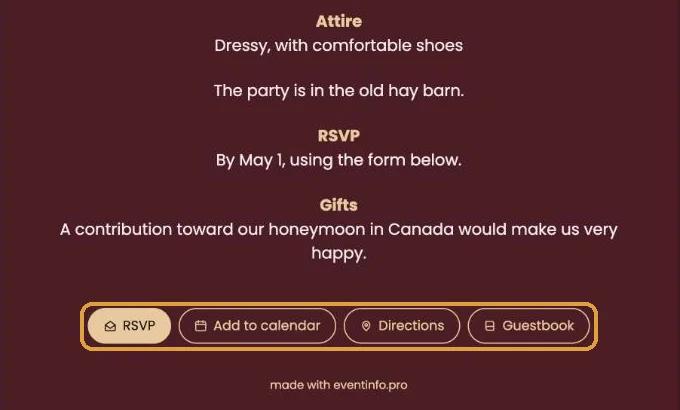
On a narrow screen, text and photo move below each other, even if they sit side by side on a computer. The buttons at the bottom adjust to the width. Nobody has to install anything: the link simply opens, from WhatsApp, email or a QR code.
Creating it on your phone
The builder works in your phone’s browser. The Image window then shows Choose a photo from your phone, so you pick straight from your photo app. iPhones often save photos as HEIC. You can use those too: Eventinfo.pro converts such a photo to JPG.
On a computer you can drag a photo into the same window. A bigger screen is often more comfortable for long texts, but you don’t need one.
Checking it yourself
- Open your invitation’s link on your phone and on a computer.
- Use a private window if you don’t want to see the bar at the top. Only you see that bar, because you’re logged in (See your invitation the way your guests do).
Got the basics? Carry on with Design.
Last updated: October 23, 2026