Adding a live stream or tickets
Your invitation doesn’t have its own button for a live stream or for tickets. You can simply put the link in your text, so guests get there with one click.
When is that useful?
At a funeral, not everyone can be there in person. A live stream lets family and friends far away follow the service. For a business event or a party with ticket sales, you point guests to the ticket page. The stream or the ticket sales run on another service; your invitation only passes on the link.
Putting the link in your text
- Open your invitation in the builder: on your dashboard, use the menu (the three dots) and choose Edit webpage.
- Type a short sentence, for example The service can also be followed online, and select the words that should become clickable.
- Click the link button in the text bar. The Add hyperlink window opens.
- Paste the address of your stream or ticket page and click Save.
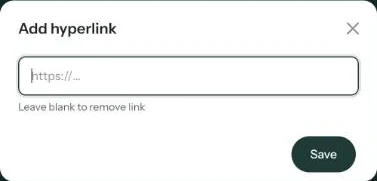
Want to remove a link? Select the text again, open the window and leave the field empty. There’s more about links in Adding a link to your text.
Mention the time as well. Say in the same sentence when the stream starts, or until when tickets are on sale. Guests then know without having to click first.
Next step: Does it work on phones, tablets and computers?
Last updated: October 23, 2026