Which buttons can you turn on?
Your invitation can show up to four buttons at the bottom. On a new invitation all four are on; you can switch them off whenever you like.

What does each button do?
- RSVP. Guests let you know whether they’re coming and how many people they bring. You see the answers on your dashboard and can download them.
- Add to calendar. Guests save the date and time in Google Calendar, Apple Calendar or Outlook with one tap.
- Directions. Opens the location in your guest’s navigation app. The button works for one address.
- Guestbook. Guests write a message and add up to five photos. You decide who can read the guestbook.
Switching buttons on or off
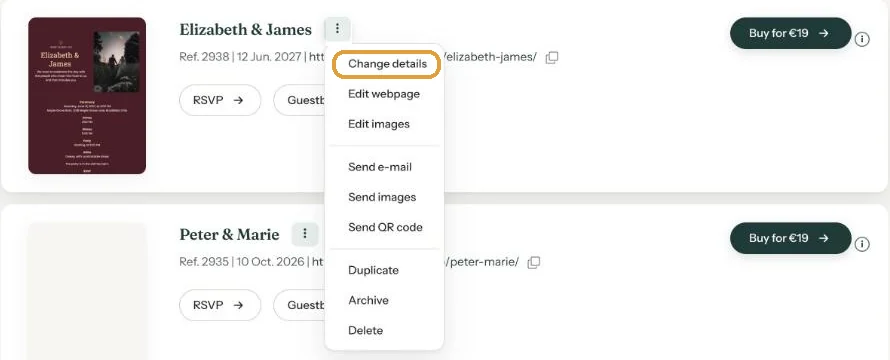
- Go to your dashboard and click the menu (the three dots) next to your invitation’s name.
- Choose Change details.
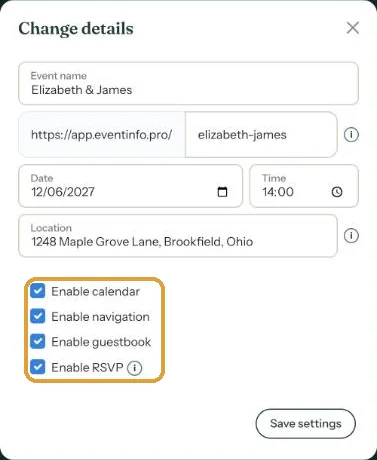
- Tick or untick Enable calendar, Enable navigation, Enable guestbook and Enable RSVP.
- Click Save settings.
This also works after you’ve shared the link. Your guests see the change the next time they open the invitation.
No address, no directions. The Add to calendar and Directions buttons use the date, time and location from the same window, so check those while you’re there.
Next step: See your invitation the way your guests do
Last updated: October 23, 2026