Which photo works best?
A sharp photo in the shape that suits your layout. That’s usually all it takes.
Portrait or landscape?
That depends on your invitation’s layout:
- Portrait image right or Portrait image left: the photo sits beside the text. Choose a portrait (upright) photo.
- Start with large image or Start with header: the photo spans the full width. A landscape photo fits best here.
With a ready-made design, look at the sample photo and pick one of roughly the same shape. Your photo isn’t cropped. What you see in the Image window is what ends up on your card.
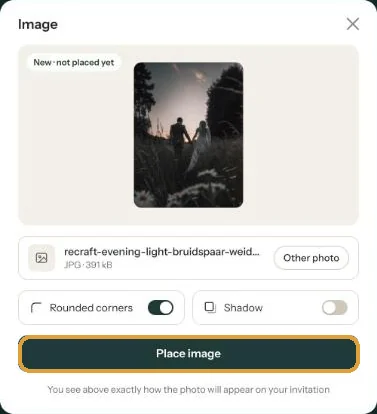
Which file?
JPG, PNG, WEBP or HEIC, the iPhone format. HEIC is converted to JPG. With any other file type you’ll see the message We can’t use this file. Choose a JPG, PNG, WEBP or HEIC.
Sharp and calm
- Use the original file from your camera or phone. A screenshot, or a photo that has already been sent through a messaging app, is often less sharp.
- In the social media images your photo fills the whole area. Something may be lost at the edges; the top part stays in view best. Faces in the upper half of the photo are safe.
- A calm background draws less attention away from your text.
Look at the result on your phone. There, a photo that sits beside the text moves below it and fills the width of the screen.
Next step: The images for social media
Last updated: October 23, 2026