Add or replace a photo
In the builder, click the photo on your card. The Image window opens: that’s where you choose your own photo and put it on the invitation.
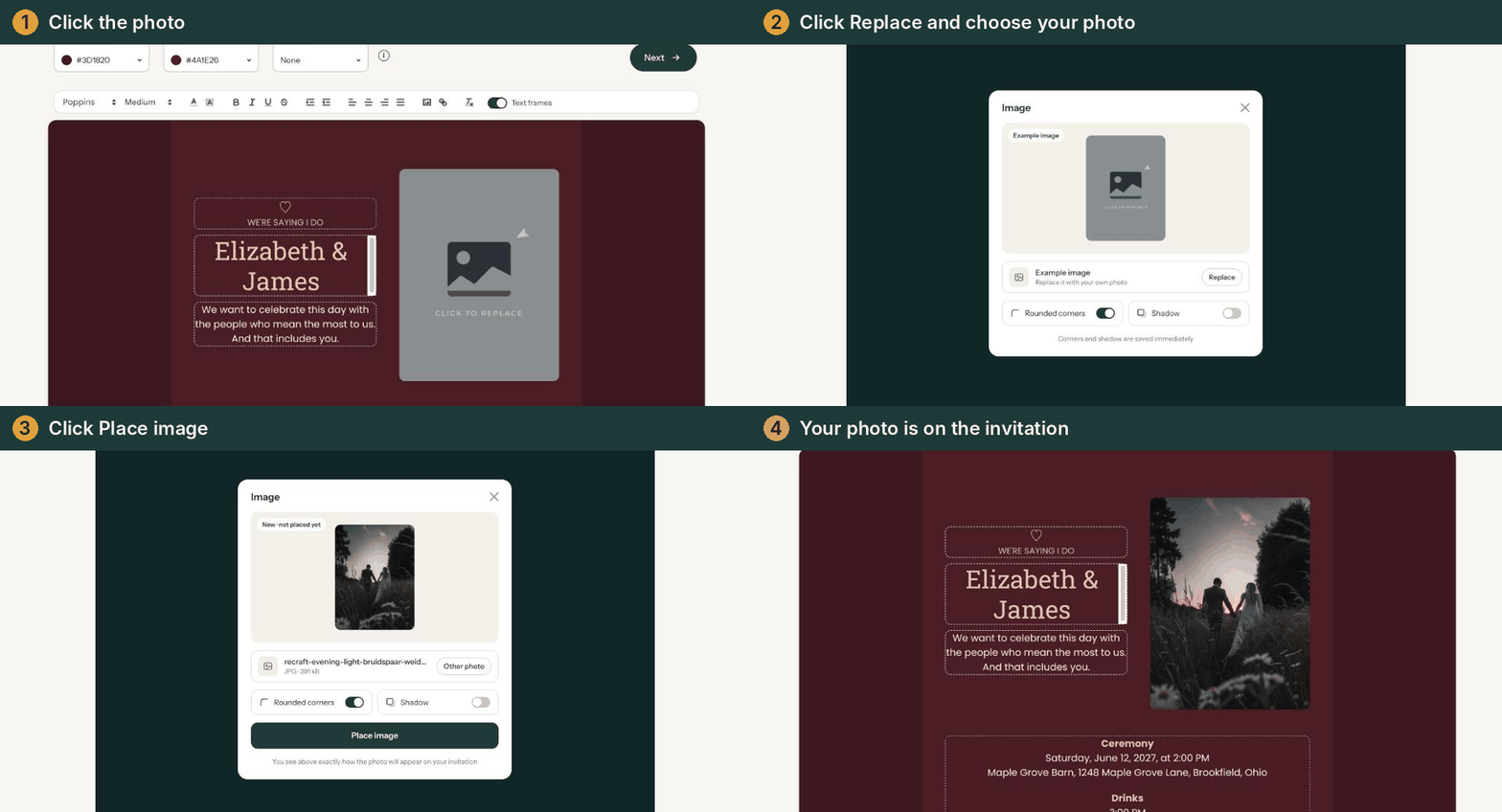
1. Open the Image window
Click the sample photo, or the image button in the text bar. At the top of the window you see the photo that’s on your invitation now. If it still belongs to the design, it says Example image. Your own photo shows On your invitation, with the file name and its dimensions.
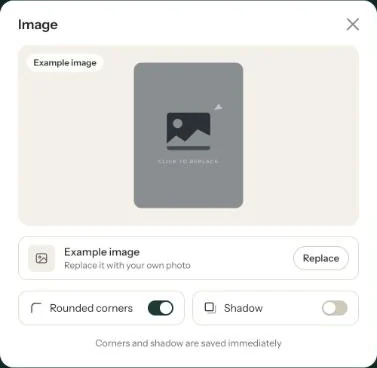
2. Choose your photo
Click Replace and pick a file. On a computer you can also drag a photo into the window; on your phone you simply choose from your photos. JPG, PNG, WEBP and HEIC (iPhone) all work. A HEIC photo is converted to JPG.
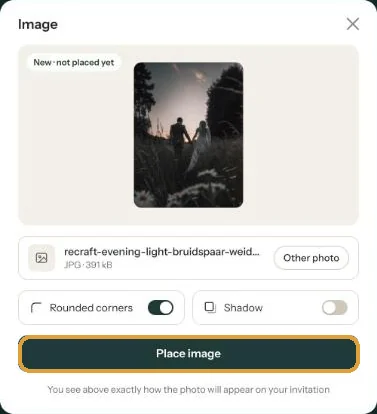
3. Place the photo
The new photo appears with the label New · not placed yet. What you see is exactly how it will appear on your invitation. Changed your mind? Click Other photo. Happy with it? Click Place image. The button shows the upload progress; then the window closes and your photo is on the card.
Next step: Which photo works best?
Last updated: October 23, 2026