Keeping text readable on your photo
On the invitation itself, text sits beside, above or below the photo, on the card colour. Only two of the social media images put the text over the photo.
On your invitation
Here readability comes down to two colours: your text and the Card. A dark card needs light text, and the other way round. How to choose those colours is explained in Choosing the background and card colour.
On the social media images
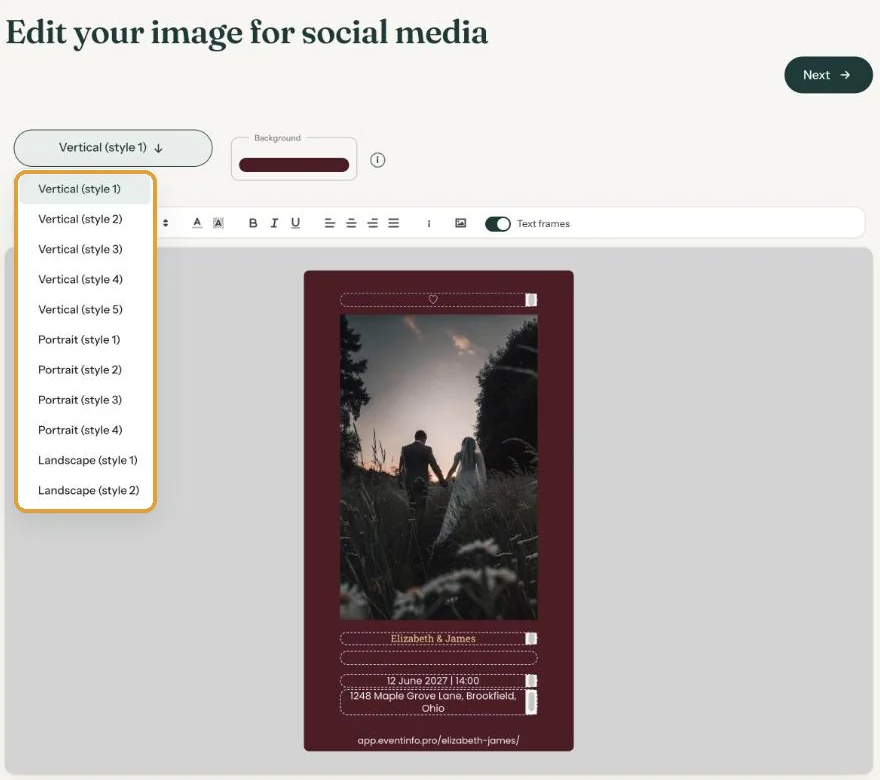
In Vertical (style 3) and Portrait (style 2), the photo fills the whole image and the text sits on it, white by default. A dark gradient at the top and bottom darkens the photo there a little, so the text stands out. That gradient is fixed: there’s no slider to darken the photo yourself.
Still hard to read?
- Choose a photo with a calm, slightly dark top and bottom, like an evening sky or a dark wall.
- Change the text colour: open Edit images, select the text and pick another colour in the text bar.
- Share a different format. In the other nine, the text sits beside or below the photo. You always get all eleven, so the choice is yours.
More about the formats and adjusting them in The images for social media.
Next step: Rounded corners and shadow
Last updated: October 23, 2026