The images for social media
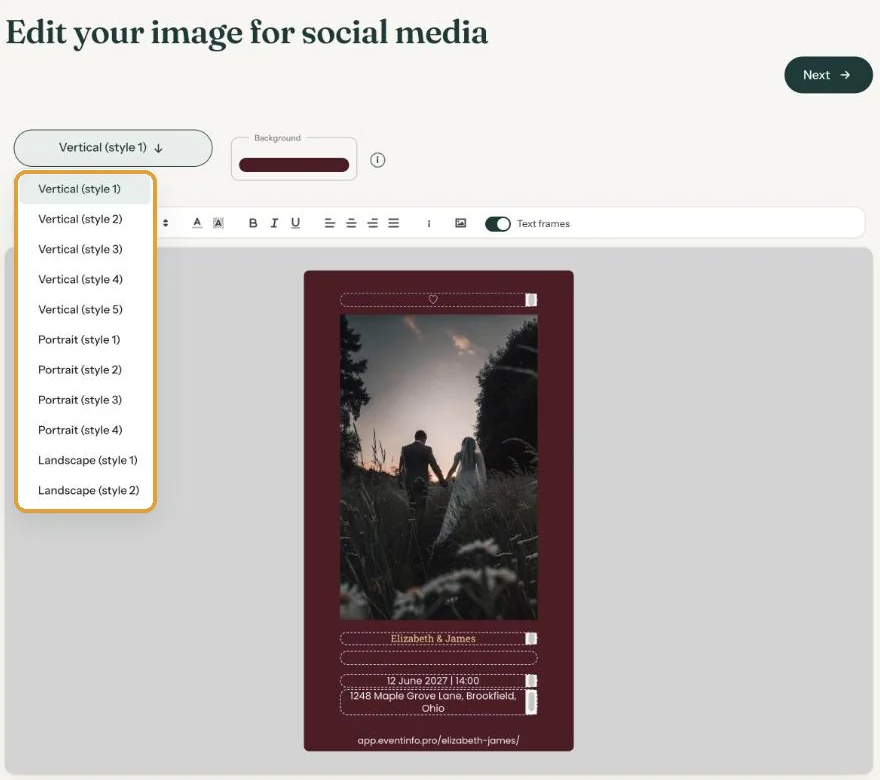
The first time you click Next in the builder, Eventinfo.pro creates eleven images of your invitation, with your photo, the name, the date and the location. You share them on social media or in a messaging app.
Which formats?
- Vertical (style 1) to (style 5): tall and narrow, for a story or status.
- Portrait (style 1) to (style 4): slightly taller than wide, for a regular post.
- Landscape (style 1) and (style 2): wide, for a post with a link.
Each image shows your invitation’s web address at the bottom. If a name is very long, Eventinfo.pro makes the text a little smaller while creating the images, so everything fits.
Receiving the images
On the All saved screen, click Send me the images, or on your dashboard open the menu (the three dots) and click Send images. You get an email with all eleven as a zip file. You choose which ones to share.
The email you send to guests with Send e-mail doesn’t use these images. It shows your invitation itself, with your own photo.
Adjusting them
- In the dashboard menu, choose Edit images. You land on Edit your image for social media.
- Pick the format you want to adjust from the list.
- Click a text to change it. Only the link line at the bottom is fixed.
- Click the photo to use another one. The Background colour only shows when there’s no photo or the photo is smaller than the image: it then forms a frame.
- Click Next. The images are created again.
Next step: Keeping text readable on your photo
Last updated: October 23, 2026