Edit or delete an RSVP
Guests can’t change their own reply. You can: in your RSVP overview, every row ends with a pencil and a cross.
Edit a reply
- In your dashboard, open the RSVP page of your invitation.
- Click the pencil at the end of the row.
- In the Edit RSVP registration window, change the name, Attending, the number of Persons or the message.
- Click Save. The counters at the top update straight away.
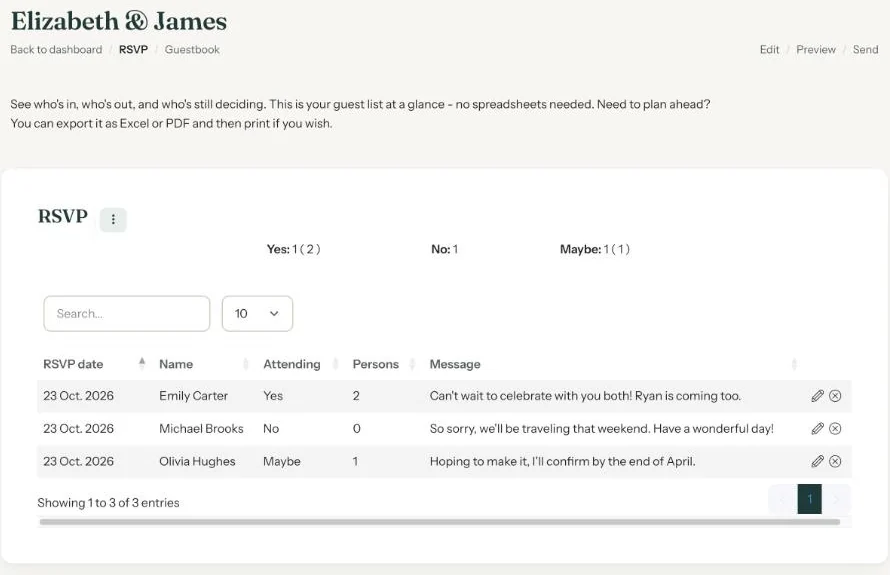
An example. Aunt Margaret replied for two but is coming alone. Set Persons to 1, click Save and you’re done.
Delete a reply
Click the cross. You’ll be asked Are you sure you want to remove this RSVP? Click Delete to confirm. There’s no undo.
This is most useful for duplicates. If a guest fills in the form twice, first with Maybe and later with Yes, both replies are in your list. Delete the older one; the RSVP date tells you which that is.
Tested it yourself? Delete your test reply before downloading the list, so your totals are right.
Next step: Close the RSVP
Last updated: October 23, 2026