Adding a link to your text
Select a word or sentence, click the link button in the text bar and enter the address. Your guests can then click it.
Adding a link
- Select the text that should become a link, for example see our gift list.
- Click the link button in the text bar (the chain).
- The Add hyperlink window opens. Type or paste the address.
- Click Save.
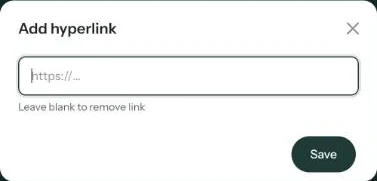
There’s no need to type https://; the builder adds it for you. Email addresses and phone numbers work too: start the address with mailto: or tel:.
If you click the link button without selecting anything, the builder inserts the address itself as clickable text where your cursor is.
Changing or removing a link
Select the linked text and click the link button again. The current address is in the box. Edit it, or empty the box (Leave blank to remove link) and click Save. The text stays; only the link goes.
A second location. The Directions button works for one address. For a second venue, add a Google Maps link to your text, see Several venues on one day.
Test every link quickly using the link after Preview on.
Next step: Adding a schedule for the day
Last updated: October 23, 2026
- Designing your invitation: the basics
- Choosing a layout
- Choosing the background and card colour
- Using the colour picker and pipette
- Editing and formatting text
- Replacing the example text with your own details
- A new look in seconds with Redesign
- Undoing changes
- Moving and aligning text
- Showing or hiding text frames
- Adding a pattern
- Adding a link to your text
- Adding a schedule for the day
- Customising a ready-made design
- Using keyboard shortcuts