Who can see the guestbook?
There are three settings: Public, Private and Hidden. You can switch at any time, even when messages have already come in.
The three settings
- Public. The guestbook window on your invitation shows a View guestbook link. Guests can read each other’s messages and look at the photos there.
- Private. Guests can still write a message, but there’s no link on the invitation to the other messages. You get a separate link to share as you see fit, with close family only, say.
- Hidden. Only you see the messages, in your dashboard.
Changing the setting
- In your dashboard, click Guestbook next to your invitation.
- Below the heading you’ll see the current setting, for example The guestbook is currently public.
- Click Set as private, Set as hidden or Set as public next to it.
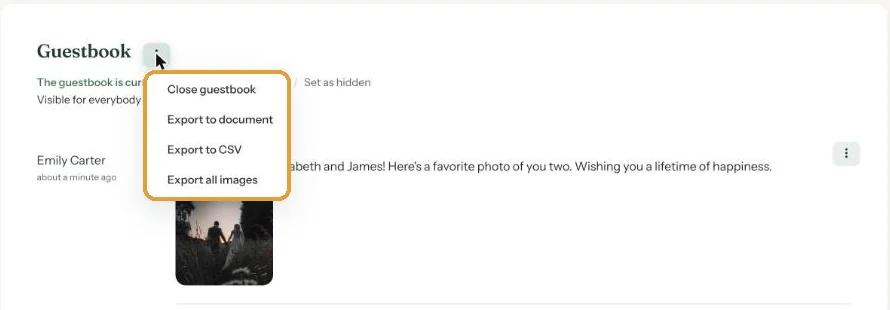
When you choose Private, the separate link appears right below that line, with a copy icon.
Want to keep just one message out of sight? There’s no need to lock the whole guestbook. Hide that one message instead (Edit or delete guestbook messages).
Want a quick reminder of what each setting does? Click Show more on the guestbook page.
Next step: Messages and photos from guests
Last updated: October 23, 2026