Sending by e-mail through Eventinfo.pro
You paste your guests’ e-mail addresses into a window, and Eventinfo.pro sends your invitation as a designed e-mail. Up to 1,000 addresses at a time.
How to send it
- Go to your Dashboard and open the three-dot menu next to your invitation.
- Choose Send e-mail. A window opens with two fields.
- Under Subject, type your own subject line, or leave it empty.
- Under List, paste the e-mail addresses: one per line, or separated by a semicolon.
- Click Send. You’ll see Message sent!
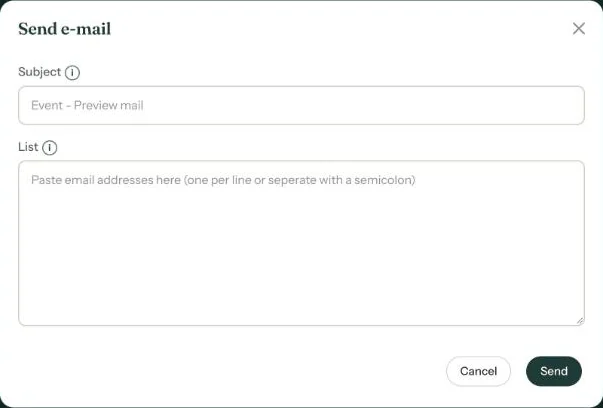
Once your invitation is activated, you’ll also find this window on the All saved screen, under Send the e-mail via Eventinfo.pro to your guest list.
The subject line
Leave the field empty and Eventinfo.pro picks a standard subject that fits your occasion. For a wedding that’s for example “Invitation: the wedding of Emma & James”, for a funeral “Farewell to…” followed by the name. Your own subject can be up to 150 characters.
Test first
Leave List empty and click Send: the e-mail then goes to you, at your account’s address. That way you see how it arrives.
What your guests get
An e-mail with your design and the same buttons as on your page, such as R.S.V.P. and See the route. At the top there’s a link to the web version. At the bottom it says the invitation was sent via Eventinfo.pro on your behalf, with your e-mail address for questions.
Next step: Forward the invitation yourself
Last updated: October 23, 2026
- All the ways to share your invitation
- Sending by e-mail through Eventinfo.pro
- Forward the invitation yourself
- Sending an invitation on WhatsApp
- A QR code on your card or flyer
- Sending an update after a change
- Your invitation's web address
- Sharing on Instagram
- Sharing on Facebook
- Sharing on LinkedIn
- Sharing on X
- Sharing via Signal, Telegram or text message
- Reminding guests