A QR code on your card or flyer
A QR code takes guests from paper to your invitation. You have the code e-mailed to you and put it on a card, flyer or poster.
Getting the QR code
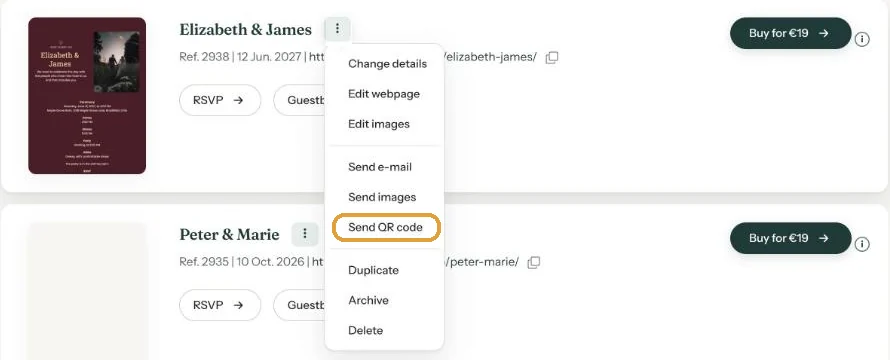
- In the Dashboard, open the three-dot menu next to your invitation.
- Click Send QR code. No window opens: you’ll see Message sent! straight away.
- Open the e-mail in your inbox (your account’s address) and save the attachment. It’s a PNG image.
Right after saving you can also use Send me the QR-code on the All saved screen.
The code uses the colours of your design: the card colour as background and the text colour for the squares.
Using it
- On a printed invitation or birth announcement, with a line such as “Scan for the programme and to RSVP”.
- On a flyer or poster, for an open day or a leaving reception, for example.
- On a sign at the entrance, so guests can write in the guestbook right away.
Testing
Print one test copy and scan it with your phone camera before you have a whole stack printed. If it doesn’t scan well, print the code larger or use a design with more contrast between card and text for the print.
Don’t change your web address after printing. The QR code points to your link. Change the link and the printed code stops working. See Your invitation's web address.
Next step: Sending an update after a change
Last updated: October 23, 2026
- All the ways to share your invitation
- Sending by e-mail through Eventinfo.pro
- Forward the invitation yourself
- Sending an invitation on WhatsApp
- A QR code on your card or flyer
- Sending an update after a change
- Your invitation's web address
- Sharing on Instagram
- Sharing on Facebook
- Sharing on LinkedIn
- Sharing on X
- Sharing via Signal, Telegram or text message
- Reminding guests