Searching and filtering designs
When choosing a design, you don’t have to scroll through everything. Type a word in the search box, or click a label under Refine. You then see only the designs that match.
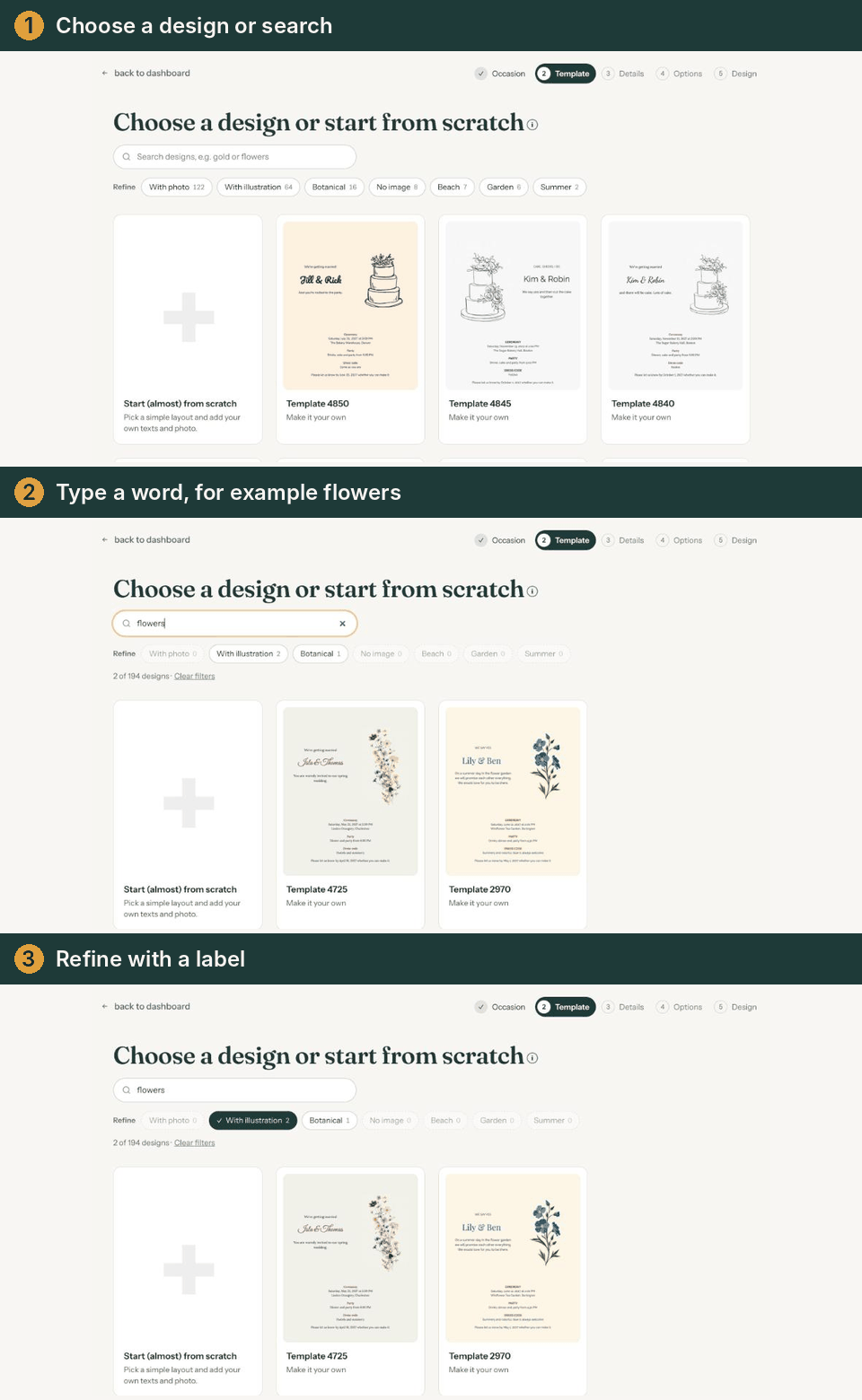
Searching for a word
The search box is at the top of the design screen. Type, for example, gold, flowers or beach. The builder searches the design names and their labels and shows the matches straight away. Below the labels you see how many there are, for example 8 of 194 designs.
Refining with labels
After Refine you’ll find labels such as With photo, With illustration, Botanical and No image. The number in each label tells you how many designs remain if you click it; a grey label gives no results right now. Click a label again to switch it off.
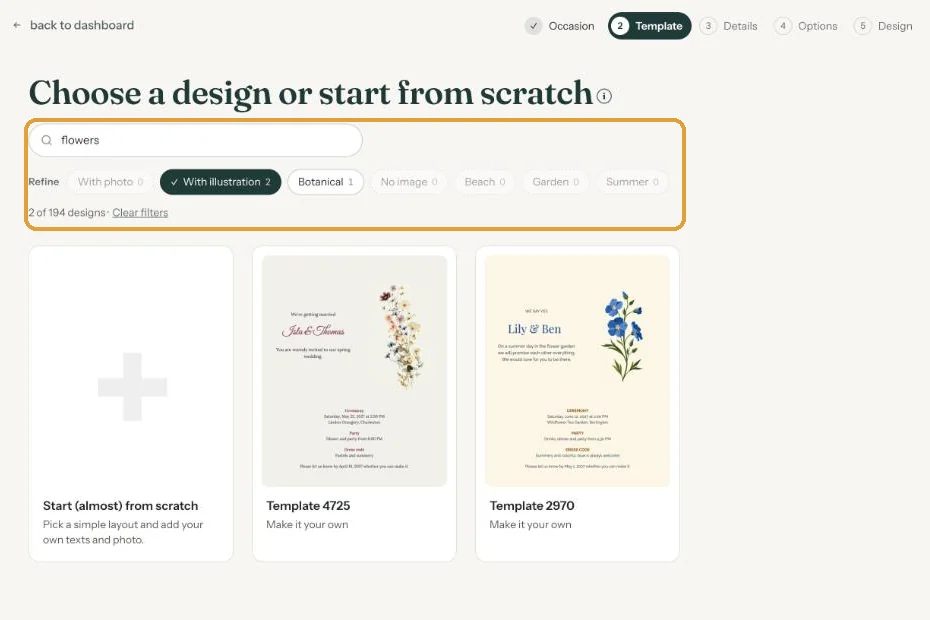
Clear filters, next to the count, shows everything again. If nothing matches, you’ll see No designs found. Try another word or clear the filters.
Seeing more designs
Without a search word or label you first see part of the designs. At the bottom there’s then Show more designs, with the number still to come. When you search or filter, you see all matches at once.
Did you choose a specific occasion in the previous step, such as Christmas? Then those designs come first, under Shown first:. The cross next to it restores the usual order. The other designs stay below.
Next step: Ready-made design or start from scratch?
Last updated: November 11, 2026