My photo won't upload
Usually the photo has been chosen but not placed yet, or the file type isn’t suitable. Go through the causes below.
1. The photo hasn’t been placed yet
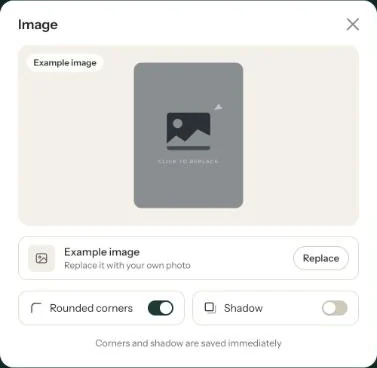
After choosing, you see the photo in the Image window with the label New · not placed yet. It only appears on your invitation once you click Place image. Wait for the upload to finish; the window then closes by itself.
2. The file type doesn’t fit
You can use JPG, PNG, WEBP or HEIC (iPhone). With any other file, such as a PDF or a GIF, you’ll see We can’t use this file. Choose a JPG, PNG, WEBP or HEIC. Save the photo as a JPG and try again. HEIC photos are converted to JPG automatically.
3. The connection drops
If you see Upload failed or Network error, the upload was interrupted. Try again on a stable (Wi-Fi) connection and keep the window open until the photo is placed.
4. The file is very large
A photo straight from a camera can be tens of megabytes. On a slow connection that takes a long time or fails. Use a smaller version, for example by choosing the photo from your phone or exporting it at a lower quality.
Which photo works best is explained in Which photo works best?.
Last updated: October 23, 2026
- My guests didn't receive the email
- WhatsApp or Facebook shows an old image
- My photo won't upload
- My invitation still shows example details
- Payment failed or invitation not activated
- My invitation looks different on mobile
- Checking your invitation the way guests see it
- The Add to calendar or Directions button doesn't work