The Add to calendar or Directions button doesn't work
The cause is almost always in Change details: the button is switched off, or the date, time or location is missing. Go through the points below.
1. The button is switched off
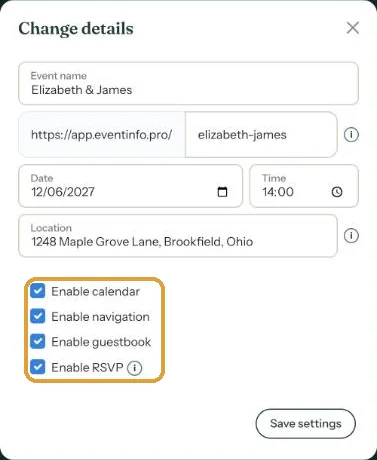
In your dashboard, open the menu (three dots) next to the invitation and choose Change details. Tick Enable calendar and Enable navigation, then click Save settings.
2. The time is missing
Without a time, Add to calendar puts the event in your guests’ calendars at 00:00. Fill in the start time under Time.
3. The address wasn’t picked properly
Directions uses whatever is in Location. If that field is empty or only says something like “at our place”, the map app can’t find it. Type the address and pick a suggestion from the list that appears.
4. You’re viewing it inside an app
If you open the link from Instagram or Facebook, for example, it opens in that app’s built-in browser, where saving to a calendar sometimes fails. Open the link in your regular browser.
More about these buttons: Turn on the Add to calendar button and Turn on the Directions button.
Last updated: October 23, 2026
- My guests didn't receive the email
- WhatsApp or Facebook shows an old image
- My photo won't upload
- My invitation still shows example details
- Payment failed or invitation not activated
- My invitation looks different on mobile
- Checking your invitation the way guests see it
- The Add to calendar or Directions button doesn't work