Adding a schedule for the day
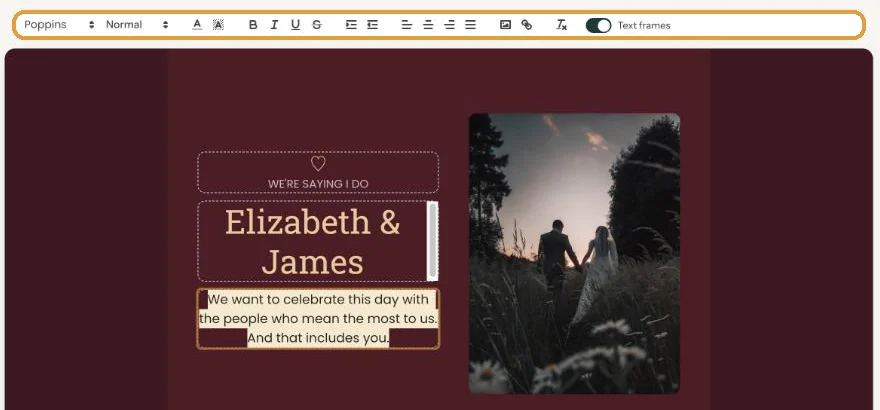
A schedule goes on the card as ordinary text, usually in the bottom text field. Bold headings, blank lines and perhaps an indent keep it easy to follow.
An example
Here’s how the schedule for Elizabeth and James’s wedding might look:
Ceremony
2:00 pm welcome drinks
2:30 pm ceremony
Dinner and party
6:00 pm dinner
9:00 pm party, until 1:00 am
Putting it on the card
- Click into the text field where the schedule should go. If there’s example text, select it and type over it.
- Put each item on its own line with Enter. A blank line between blocks makes it calmer.
- Select the headings and make them bold, or give them a slightly larger size.
- Align the schedule like the rest of your text. If it’s left-aligned, you can indent the times a little (Moving and aligning text).
Keep it short
Many guests read your invitation on their phone. List the main parts with their times; the menu or where to park can follow later. If something changes, edit the text. You can do that up to the date of the event, and the link stays the same.
Write times the same way throughout. Pick 2:00 pm or 14:00 and stick with it. The schedule reads much more calmly.
Next step: Customising a ready-made design
Last updated: October 23, 2026
- Designing your invitation: the basics
- Choosing a layout
- Choosing the background and card colour
- Using the colour picker and pipette
- Editing and formatting text
- Replacing the example text with your own details
- A new look in seconds with Redesign
- Undoing changes
- Moving and aligning text
- Showing or hiding text frames
- Adding a pattern
- Adding a link to your text
- Adding a schedule for the day
- Customising a ready-made design
- Using keyboard shortcuts