Replacing the example text with your own details
When you choose a ready-made design, Eventinfo.pro puts your name, date, time and location on the card wherever it can. The rest of the text comes from the example, and that part is up to you.
What gets filled in
The information from the details screen: the name (for a wedding, the couple’s names), the date, the time and the location. Only in the places the design has set aside for them. A programme, an RSVP date, an address in the running text or a dress code all belong to the example.
The message at the top
If details were filled in, the builder shows Read the text carefully. Close it with the cross and it won’t come back for this invitation.
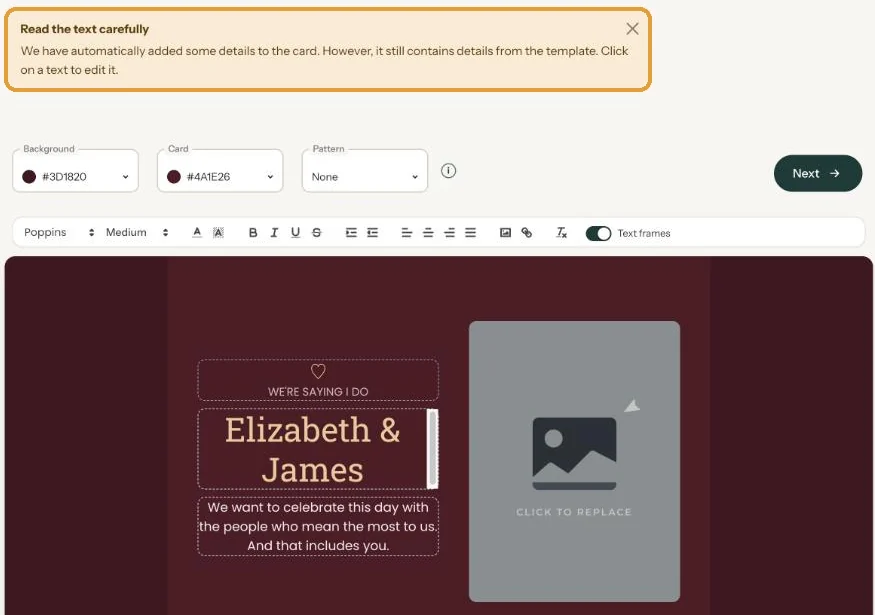
If the design has no fixed places for your details, you’ll see Check the text: this design still contains example details instead. Below it are your own name, date and location, ready to copy across.
Checking the text
- Read the card from top to bottom, one text field at a time.
- Click every name, date, time and place that isn’t yours and type your own.
- Watch out for things that are easy to miss, like an RSVP date or the address of the party.
- Open the link after Preview on and read everything once more, the way your guests will.
Next step: A new look in seconds with Redesign
Last updated: October 23, 2026
- Designing your invitation: the basics
- Choosing a layout
- Choosing the background and card colour
- Using the colour picker and pipette
- Editing and formatting text
- Replacing the example text with your own details
- A new look in seconds with Redesign
- Undoing changes
- Moving and aligning text
- Showing or hiding text frames
- Adding a pattern
- Adding a link to your text
- Adding a schedule for the day
- Customising a ready-made design
- Using keyboard shortcuts