A new look in seconds with Redesign
Redesign gives your card new fonts and colours in one go. Your texts and photo stay put, so you can try a few looks without worrying.
The button is at the top of the builder, next to the colour fields. You’ll only see it on invitations you started (almost) from scratch. Ready-made designs don’t have it, and neither do copies of them.
How it works
- Click Redesign.
- Under Style, choose Modern, Elegant, Vibrant, Playful or Formal.
- Under Theme, choose Light or Dark.
- Pick a Colour combination. The outer ring of each circle is the background, the inside is the card.
- Click Generate.
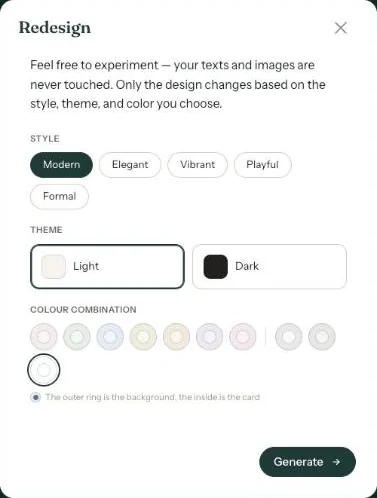
No colours showing for a choice? Then there are no colour combinations for that style with that theme. Try another style or the other theme.
Going back
After a redesign, a small button with two curved arrows appears next to Redesign. That’s Undo, and it brings back your previous fonts and colours. More about that in Undoing changes.
Text first, look second. Redesign only changes the styling. Put your own text and photo on the card first, so you’re judging the real result.
Next step: Undoing changes
Last updated: October 23, 2026
- Designing your invitation: the basics
- Choosing a layout
- Choosing the background and card colour
- Using the colour picker and pipette
- Editing and formatting text
- Replacing the example text with your own details
- A new look in seconds with Redesign
- Undoing changes
- Moving and aligning text
- Showing or hiding text frames
- Adding a pattern
- Adding a link to your text
- Adding a schedule for the day
- Customising a ready-made design
- Using keyboard shortcuts