Designing your invitation: the basics
The builder is where you finish your invitation. Colours and pattern sit at the top, the text bar is below them, and your card is underneath. Every change is saved automatically.
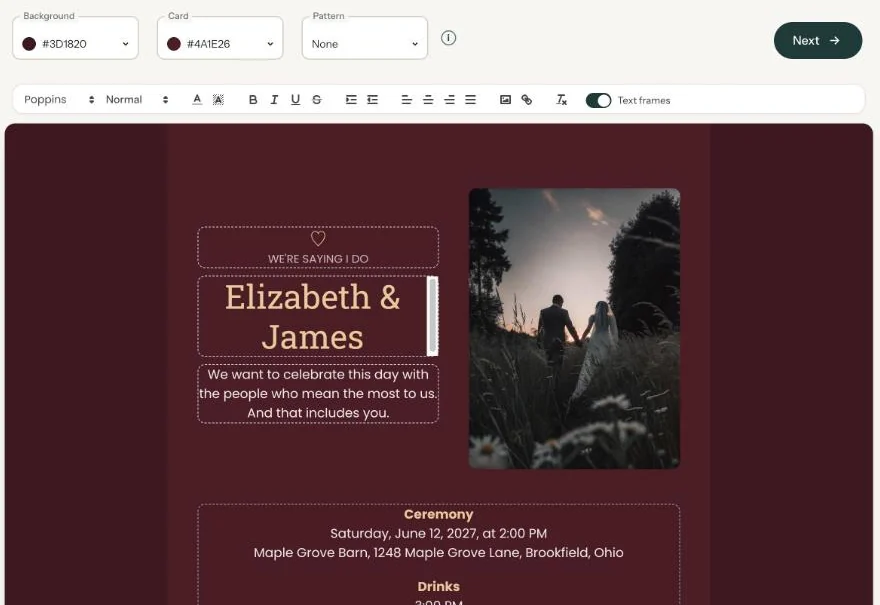
At the top: colours and pattern
- Background is the colour around your card.
- Card is the colour behind your text and photo.
- Pattern adds a light pattern around the card, on the card or both.
If you started (almost) from scratch, you’ll also see Redesign here, for trying a different style in a few clicks. Ready-made designs don’t have that button.
The text bar
Click into a text on the card and use the bar to pick a font, a size, a colour or a highlight. There are also buttons for bold, italic, underline and strikethrough, for indenting and alignment, for adding a link and for clearing formatting. If your layout has a photo, there’s a button to replace it too. On the right of the bar is the Text frames switch.
The card itself
Your card is made up of a few text fields and, if your layout has one, a photo. Click a text to edit it. Click the photo to put in your own (Add or replace a photo). At the top of the page, after Preview on, you’ll find the link that shows you what your guests will see.
Saving and moving on
There’s no save button. Text is saved as soon as you pause typing or click somewhere else; a colour is saved the moment you pick it. When you’re done, click Next. Eventinfo.pro then creates the images for social media and apps like WhatsApp.
Next step: Choosing a layout
Last updated: October 23, 2026
- Designing your invitation: the basics
- Choosing a layout
- Choosing the background and card colour
- Using the colour picker and pipette
- Editing and formatting text
- Replacing the example text with your own details
- A new look in seconds with Redesign
- Undoing changes
- Moving and aligning text
- Showing or hiding text frames
- Adding a pattern
- Adding a link to your text
- Adding a schedule for the day
- Customising a ready-made design
- Using keyboard shortcuts