Editing and formatting text
Click a text on the card and start typing. To format something, select it and choose what you want in the text bar.
Changing text
The card is made up of a few separate text fields, for example a line at the top, the names and the rest of the text. Click into a field and type, delete or paste as you normally would. Press Enter for a new line.
Formatting
- Select the words you want to change.
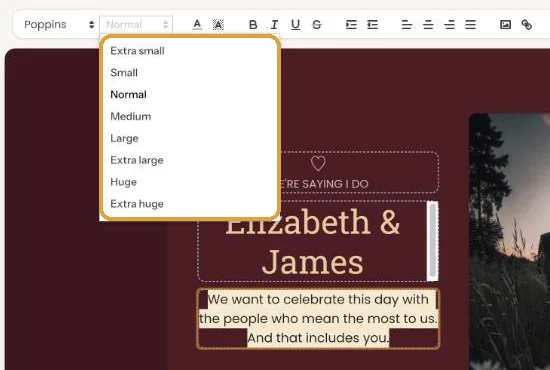
- In the text bar, choose a Font-family or a Font-size. Sizes go from Extra small to Extra huge.
- Click the text colour or highlight button. A bar opens with colours, a pipette and a box for a colour code. For highlight, choose No highlight to remove it again.
- Make words bold, italic, underlined or struck through with the B, I, U and S buttons.
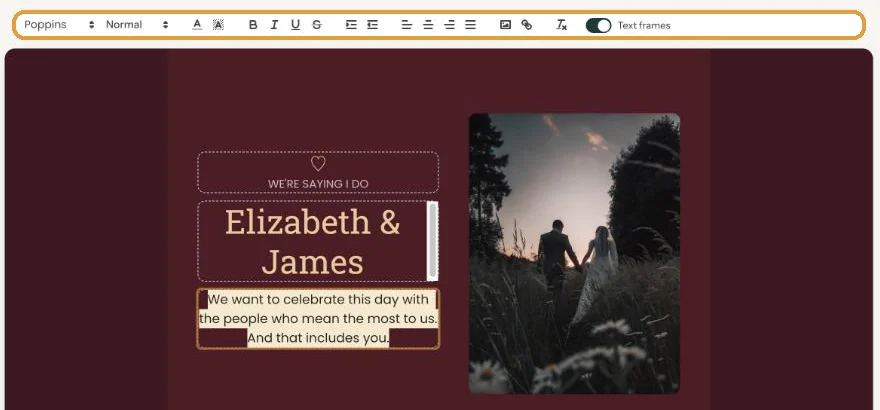
Nothing selected? Then the whole field changes. If you pick a font, size, colour or highlight while only your cursor is in the text, the builder applies it to the entire text field. To change a single word, select it first.
Clearing formatting
Select the text and click clear formatting in the text bar. Bold, colour, font and size are removed from that text, so you may need to pick the font of the rest again afterwards.
Prefer the keyboard? See Using keyboard shortcuts.
Next step: Replacing the example text with your own details
Last updated: October 23, 2026
- Designing your invitation: the basics
- Choosing a layout
- Choosing the background and card colour
- Using the colour picker and pipette
- Editing and formatting text
- Replacing the example text with your own details
- A new look in seconds with Redesign
- Undoing changes
- Moving and aligning text
- Showing or hiding text frames
- Adding a pattern
- Adding a link to your text
- Adding a schedule for the day
- Customising a ready-made design
- Using keyboard shortcuts