Using the colour picker and pipette
The colour bar opens as soon as you click Background or Card. Choose one of the colours on offer, or take a shade straight from your own photo.
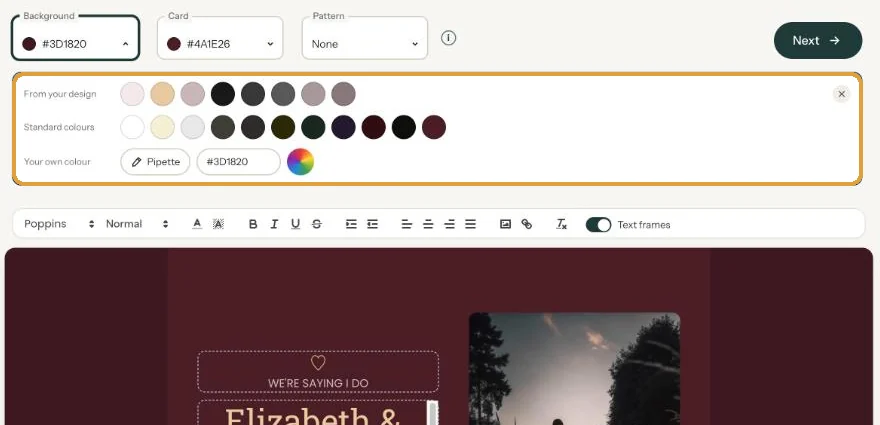
From your design
The colours of the text on your card plus the main colours of your own photo. Useful when you want everything to match. Example photos don’t count, and the row only appears once there’s something to show.
Standard colours
The background and card colours used in the designs for your occasion, from light to dark. Under Background you’ll also find your current card colour, and the other way round, so you can make the two match in one click.
Your own colour
- Pipette. Click Pipette and then a colour in your invitation, such as the flowers in your photo. In Chrome and Edge on a computer you can also click a colour anywhere else on your screen.
- Hex code. Type a code such as #A3B18A into the box and press Enter. Handy for matching brand colours or printed stationery exactly.
- More colours. Opens your browser’s own colour picker, if you’d rather slide around yourself.
You get the same options for text colour and highlight in the text bar. Close the bar with the cross or the Esc key.
Next step: Editing and formatting text
Last updated: October 23, 2026
- Designing your invitation: the basics
- Choosing a layout
- Choosing the background and card colour
- Using the colour picker and pipette
- Editing and formatting text
- Replacing the example text with your own details
- A new look in seconds with Redesign
- Undoing changes
- Moving and aligning text
- Showing or hiding text frames
- Adding a pattern
- Adding a link to your text
- Adding a schedule for the day
- Customising a ready-made design
- Using keyboard shortcuts