Moving and aligning text
The alignment buttons in the text bar put text on the left, in the centre or on the right. Indenting moves a paragraph to the right, one step at a time. The text fields themselves are fixed by the layout.
Aligning
- Click into the paragraph you want to align. For several paragraphs, select them together.
- In the text bar, click left, centre, right or justify.
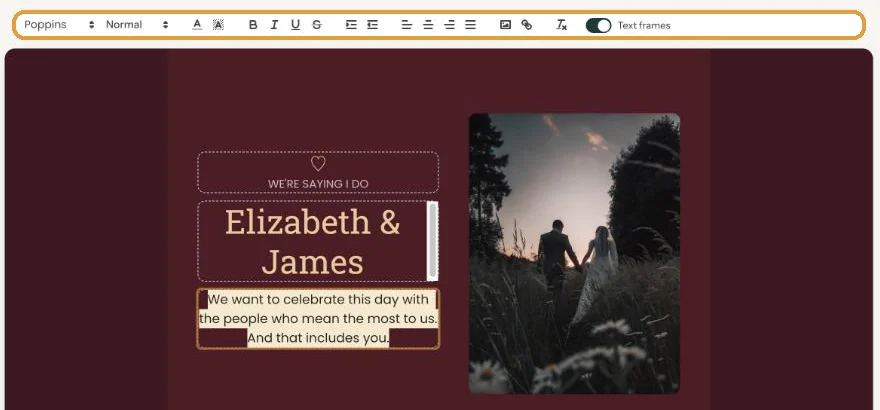
Justify makes both edges of the text straight. That looks tidy in a long paragraph, but short lines end up with gaps between the words. On an invitation, centred or left-aligned text usually looks calmer.
Indenting
The two indent buttons move the paragraph your cursor is in to the right, or back again. Each click is one step, up to seven steps. Useful for nudging the times in a programme in a little (Adding a schedule for the day).
More space between texts
You can’t drag text fields around with the mouse: the layout decides where they go. To add breathing room, use an empty line (Enter). If you’d like the photo and text arranged differently, you need another layout: Choosing a layout.
Next step: Showing or hiding text frames
Last updated: October 23, 2026
- Designing your invitation: the basics
- Choosing a layout
- Choosing the background and card colour
- Using the colour picker and pipette
- Editing and formatting text
- Replacing the example text with your own details
- A new look in seconds with Redesign
- Undoing changes
- Moving and aligning text
- Showing or hiding text frames
- Adding a pattern
- Adding a link to your text
- Adding a schedule for the day
- Customising a ready-made design
- Using keyboard shortcuts