Customising a ready-made design
A ready-made design is a starting point. You can change almost everything; only the layout is fixed, and Redesign isn’t available.
What you can change
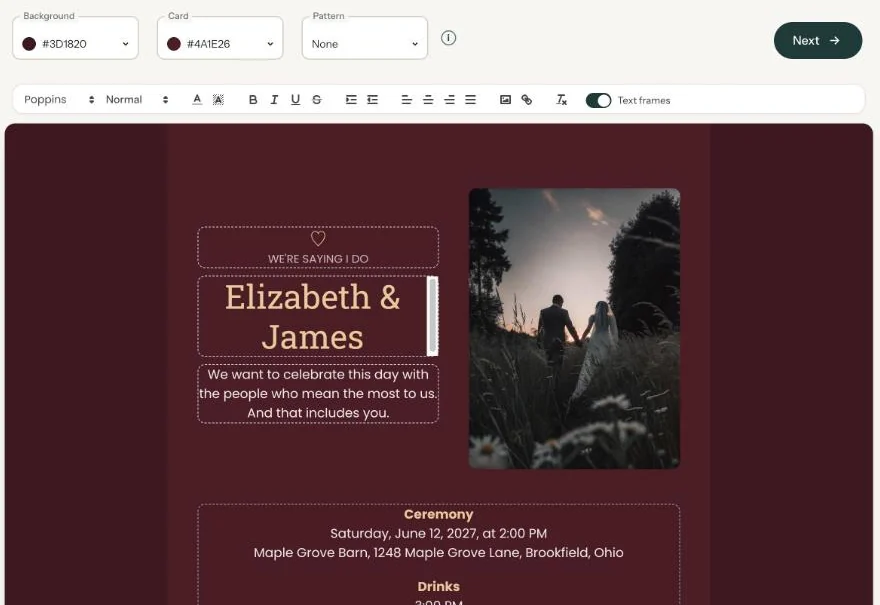
- All the texts. Wording, font, size, colour, highlight and alignment (Editing and formatting text).
- The colours. Choose Background and Card at the top of the builder.
- The pattern. Add, swap or remove it whenever you like.
- The photo. If the design has one, click it to put in your own.
- Your guests’ buttons. Turn RSVP, Add to calendar, Directions and Guestbook on or off under Change details in your dashboard.
What’s fixed
Where the photo and text go is part of the design, and so is the number of text fields. Redesign is missing too, because a ready-made design keeps its own style. That stays the same if you duplicate the invitation.
Want a different arrangement? Start a new invitation with Start (almost) from scratch and choose a layout (Choosing a layout).
Start with the example text
Your name, date, time and location are often already filled in, but the rest of the text comes from the example. Go through it before you start playing with colours: Replacing the example text with your own details.
Next step: Using keyboard shortcuts
Last updated: October 23, 2026
- Designing your invitation: the basics
- Choosing a layout
- Choosing the background and card colour
- Using the colour picker and pipette
- Editing and formatting text
- Replacing the example text with your own details
- A new look in seconds with Redesign
- Undoing changes
- Moving and aligning text
- Showing or hiding text frames
- Adding a pattern
- Adding a link to your text
- Adding a schedule for the day
- Customising a ready-made design
- Using keyboard shortcuts