Choosing and adjusting your social media images
On the page Your images for social media you choose which images to keep. On the right you change the text and the focal point of the photo, and all images change with it at once.
Choosing images
The images are grouped by format: Story, Post and Link preview. They are all ticked, and the first one of each format has the label Recommended. Click an image to leave it out; it turns lighter and the tick disappears. Another click brings it back.
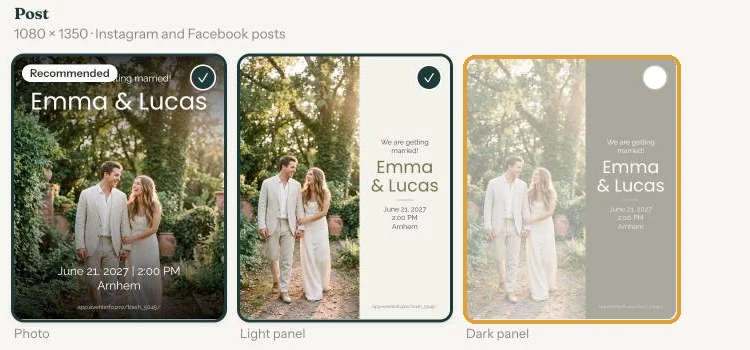
Only the chosen images are saved and sent. At the top you can see how many you have chosen.
Changing the text
Under Text you find the fields Heading, Name, Date and time and Location. They come from your invitation, with the same fonts and colours. Want something shorter on the images, such as just the first names? Type it here. Back to the text of your invitation resets a field. Long names are spread over two or three lines automatically. If a layout no longer fits your text, you will see it on that image and it will not be saved.
The focal point of the photo
Eventinfo.pro finds the faces in your photo and keeps them in view in every image. Is something else important, like a cake or a building? Under Photo, click Move focal point.
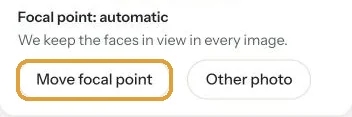
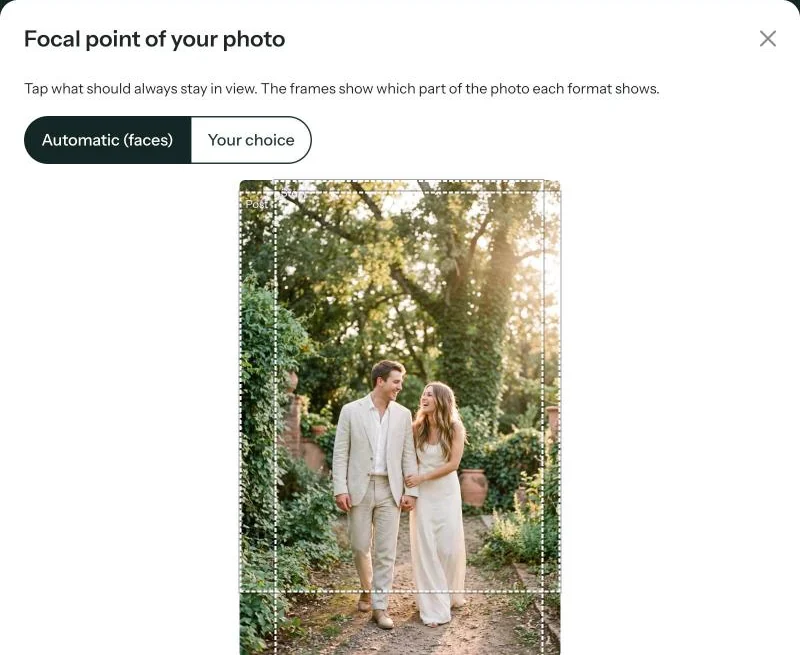
- Choose Your choice.
- Tap what should always stay in view. The frames show which part each format shows.
- Click Save. Automatic (faces) takes you back later.
Want a different photo on the images than on your invitation? Click Other photo. A new set of images is then created, and you choose again.
Done
Click Next. Your chosen images are saved and you go to the screen where you download or share them.
Next step: Downloading your images or sending them to yourself
Last updated: November 24, 2026
- Add or replace a photo
- Which photo works best?
- The images for social media
- Choosing and adjusting your social media images
- Downloading your images or sending them to yourself
- Keeping text readable on your photo
- Rounded corners and shadow
- An illustration instead of a photo
- Can I use a background image?